How to Use Gluon Duty
The complete documentation for the Examination Duty Management System.
1. Introduction
The Examination Duty Management System is a web-based application developed to simplify and automate the management of examination invigilation duties. The system provides a secure and user-friendly interface through which authorized staff can manage examination-related activities efficiently.
The application provides centralized modules for managing examination rooms, invigilators, examinations, duty lists, reports, institutional settings, and user profiles.
1.1 Core Modules
- Login and Registration
- Dashboard
- Profile
- Settings
- Room Management
- Invigilator Management
- Examination Management
- Duty Lists
- Duty List Report
2. Login and Registration
2.1 Login
https://duty.gluonweb.in/system/login
The Login Page provides secure access to the system for registered users. Users can log in by entering their registered email address and password.
The page also provides:
- Registration access for new users.
- WhatsApp-based support for assistance.
2.2 Registration
https://duty.gluonweb.in/system/register
The Registration Page allows new users to create an account. Users are required to provide their name and email address.
After submitting the registration form, the user proceeds to the verification process.
2.3 Verification and Complete Registration
The Verification & Complete Registration page is used to verify the user's email address and complete account creation.
A 6-digit OTP (One-Time Password) is sent to the registered email address. The user must enter the OTP along with the following information:
- Verification Code
- Institute Name
- Password
- Confirm Password
The system validates the entered information and completes registration when the verification is successful.

Key Features
- Email OTP Verification: Sends a 6-digit verification code to the registered email address.
- Institute Verification: Records the user's college or institution.
- Password Creation: Allows the user to create a minimum 6-character password.
- Password Confirmation: Verifies that both password fields match.
- Account Completion: Creates the user account after successful verification.
- Help Support: Provides WhatsApp-based assistance when required.
Registration Workflow
Register Receive OTP Enter Code Enter Institute Create Password Complete Registration
3. Dashboard
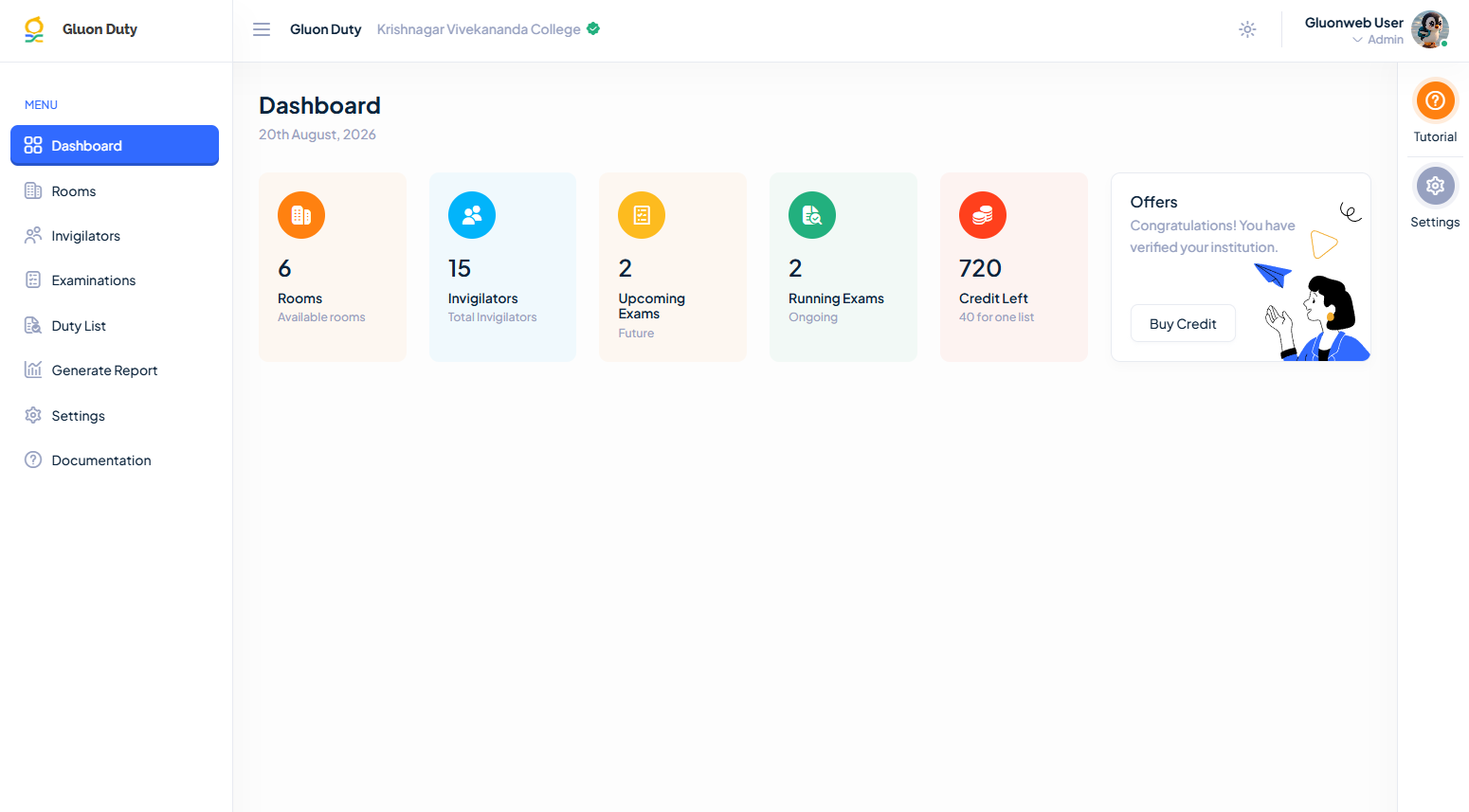
The Dashboard is the central control panel of the Examination Duty Management System. After successful login and institution verification, users can access an overview of examination activities and navigate to the major modules from a single interface.

3.1 Dashboard Components
- Rooms: Displays the total number of examination rooms available in the system.
- Invigilators: Displays the total number of registered teachers or invigilators.
- Upcoming Exams: Provides information about examinations scheduled for upcoming dates.
- Running Exams: Displays the number of examinations currently in progress.
- Credit Balance: Shows the available system credits used for generating examination duty lists.
- Offers / Buy Credit: Provides access to available credit offers and allows users to purchase additional credits.
Institution Information
Displays the verified institution name in the system header.
4. Profile
The Profile Page allows users to manage their account information and profile photo.

4.1 Update Profile
The Update Profile section allows users to:
- View and update the Username.
- Enter the Current Password for verification.
- Enter a New Password.
- Confirm the New Password.
- Click Update to save account changes.
4.2 Profile Photo
- View the existing profile photo.
- Select a new image using the Choose File option.
- Upload the new profile image.
- Save the updated image using Update.
Supported Image Requirements
Formats: JPG, PNG, WEBP
Max File Size: 50 KB
5. Settings
The Settings module is used to configure and maintain institutional information and system-level preferences.
5.1 Institution Information

The administrator can enter or update:
- Institution Name
- Institution Code
- Affiliation
- Principal Name
- Address
- City
- District
- State
- Pincode
- Phone
- Website
The stored institutional information may be displayed in generated examination and duty-list documents.
5.2 Header Image

The administrator can upload an institutional Header Image for use in generated reports and duty-list documents.
Supported Requirements
Formats: JPG, PNG, WEBP
Maximum File Size: 200 KB
The existing header image is displayed for reference.
The Use Header Image toggle determines whether the uploaded image is included in generated documents.
5.3 System Preferences
The Settings module provides the following system preferences:
- Fair Randomization: Enables fair/random distribution of invigilator duties during duty-list preparation.
- Remuneration Calculation: Enables automatic calculation of invigilator remuneration based on assigned duties.
Both options can be enabled or disabled according to institutional requirements.
5.4 Update Settings
After modifying the settings, the administrator clicks Update to save:
- Institutional information
- Header image configuration
- System preferences
6. Room Management
The Room Management module is used to maintain and organize examination rooms within the Institution. It provides administrators with a centralized list of rooms and their associated information.
Room information can subsequently be used for examination scheduling and invigilation duty allocation.
6.1 Room Information
The system maintains the following room details:
- Room Number
- Room Name
- Floor
- Building
- Number of Required Invigilators
- Status
6.2 Room Management Functions

- Add Room: Allows administrators to create and register a new examination room.
- Edit Room: Allows administrators to modify information belonging to an existing room.
- Delete Room: Allows administrators to remove an existing room record.
- Search: Allows users to quickly locate a particular room.
- Pagination: Allows administrators to control and navigate through large numbers of room records.
- Status: Indicates whether a room is currently Active and available for examination use.
6.3 Add Room
The Add Room form is used to register a new examination room. The administrator can enter:
- Room Number: Unique identification number of the room.
- Room Name: Name or description of the room.
- Floor: Floor where the room is located.
- Building: Building or block containing the room.
- Invigilator Required: Number of invigilators required.
- Status: Indicates whether the room is active.
The Save button stores the room information, while the Close button exits the form without saving.

6.4 Edit Room
The Edit Room function displays the existing room information and allows the administrator to modify:
- Room Number
- Room Name
- Floor
- Building
- Number of Invigilators
- Status
The Update button saves the revised information.

7. Invigilator Management
The Invigilator Management module is used to maintain information about teachers and staff members who may be assigned examination invigilation duties.
Administrators can add individual invigilators, edit their information, and import multiple invigilator records using the bulk insertion facility.

7.1 Add Invigilator
The Add Teacher / Invigilator form allows administrators to create a new invigilator record. The following information can be entered:
- Name
- Employee ID
- Designation
- Department
- Mobile Number
- Gender
- Type
- Preparatory / Off Days
- Status
- Remarks
The Status field identifies whether the invigilator is active.

7.2 Edit Invigilator
The Edit Teacher function allows administrators to modify previously stored information. The administrator can update:
- Name
- Employee ID
- Designation
- Department
- Contact Details
- Type
- Preparatory / Off Days
- Status
- Remarks
The Update button saves the modified information.

7.3 Invigilator Bulk Insert
The Invigilator Bulk Insert feature allows administrators to import multiple invigilator records using a CSV file.
Bulk Import Procedure
- Download the Sample CSV template.
- Enter the invigilator information in the template.
- Keep the existing column headers unchanged.
- Enter preparatory/off days as comma-separated values, such as Monday, Tuesday, Wednesday.
- Upload the completed CSV file.
- Click Upload to import the records.
This feature reduces the time required to enter a large number of invigilators individually.

Sample CSV template

8. Examination Management
The Examination Management module is used to create, maintain, and organize examination schedules.
It stores important examination information, including examination name, academic year, semester, stream, examination period, and individual exam shifts or papers.

8.1 Add Examination
The Add Examination form allows administrators to create a new examination. The following information can be entered:
- Category: Type or category of examination.
- Exam Name: Name of the examination.
- Academic Year: Applicable academic year.
- Semester: Applicable semester.
- Start / End Date: Duration of the examination.
- Stream: Applicable course (e.g., B.A., B.Sc., P.G.).
- Status: Indicates whether the examination is active.
The Save button stores the examination details, while Close exits.

8.2 Edit Examination
The Edit Examination function allows administrators to update an existing examination record. Modify:
- Category
- Exam Name
- Academic Year
- Semester
- Start Date
- End Date
- Stream
- Status
An optional Remuneration section is also available for maintaining examination-related remuneration information. The Update button saves the revised information.

8.3 Manage All Shifts — Exam Details
This page is used to add, view, and manage examination shifts for a particular examination. Each row represents one exam paper/shift.
- Exam Date: The date on which the examination will be conducted. (e.g., 05-08-2026)
- Title / Paper Name: The name or title of the examination paper. (e.g., Major V)
- Shift: Specifies which examination session the paper belongs to, such as 1st Half or 2nd Half.
- Start Time: The time at which the examination shift begins. Example: 08:14 AM.
- End Time: The time at which the examination shift ends. Example: 10:21 AM.
- + Button: Adds a new examination shift/row.
- Delete (trash icon): Removes an editable shift from the list.
- Lock: Indicates that the shift is locked and cannot be edited or deleted.
- Save: Saves all the added or modified examination shift details.

9. Duty Lists
The Duty Lists module is used to prepare, manage, review, and print invigilator duty assignments for scheduled examinations.
The module provides a complete workflow from examination selection through final duty-list locking.
9.1 Select Examination
The user selects an examination from the Select Exam dropdown, which displays:
- Examination Name
- Examination Date Range
- Examination Category
- Exam ID
After selecting an examination, the user clicks Search to load the corresponding duty list.
9.2 Duty List Table
The duty list table displays scheduled duty information, including:
- Exam ID
- Exam Date
- Title / Paper Name
- Shift
- Start Time
- End Time
- Duty List Status

Search and pagination functions are available for locating specific duty records.
9.3 Duty List Actions
Depending on the status, available actions include:
- Prepare: Starts the duty-list preparation process.
- View & Print Duty List: Displays the finalized duty list in printable format.
- Edit: Allows permitted changes to a prepared duty list.
- Reset Duty List: Resets an existing assignment so that it can be prepared again.
- Lock: Finalizes the duty list and prevents further changes.
9.4 Prepare Duty List — Room Selection
The first stage of duty-list preparation is Room Selection.
For each room, the system displays:
- Room Number
- Room Name
- Required Invigilators
- Building
- Floor
The user can select one or more rooms and adjust the required number of invigilators when necessary.
The system automatically displays:
- Total Rooms Selected
- Total Invigilators Required
A Handle P/Off Day option is available to consider invigilators' preparatory/off-day requirements. The user clicks Next to proceed to invigilator selection.

9.5 Invigilator Selection
The second stage displays available invigilators and their relevant duty information.
The system displays:
- Invigilator Name
- Reliever options: If we on reliever option the invigilator will be shown as reliever for other invigilators
- In-Charge options: If we on incharge option the invigilator will be shown as in-charge for other invigilators
- Duty Performed Summary(N = Normal Room Duty,R = Reliever,IC = In-Charge,AB = Absent,T = Total)
- Department and Designation
- Availability Status
The system identifies whether an invigilator is Available or On P/Off Day. Available invigilators can be selected according to the staffing requirements.


Note:If the Fair Randomization button is disabled in the Settings section, the invigilators marked as P/Off Day will also be included when preparing the duty list, and duties can be assigned to those invigilators.


9.6 View and Print Duty List
After the duty list has been prepared, the View Duty List option displays the finalized assignment in a printable format.
The duty list contains:
- College / Institution Header
- Examination Name
- Date and Shift
- Room Numbers and Room Names
- Assigned Invigilators
- Signature Section
- Reliever Information, where applicable.

The user can Print the duty list. The Lock function can be used to finalize the assignment and prevent unintended modifications.

Duty List PDF

9.7 Edit Room Duty
The Edit Room Duty option allows administrators and authorized staff to update invigilator assignments for a specific room after a duty list has been prepared.

By clicking the edit (pencil) icon next to an assigned invigilator's name in the Edit Duty List modal, the user can perform room-level duty modifications:
- Mark as Absent: Marks the assigned invigilator as absent for that specific examination shift.
- Remove From Duty: Removes the invigilator from the assigned duty list for the room.
- Replace with another Invigilator: Selects an alternative available invigilator from the dropdown list and substitutes them into the assigned duty slot.


9.8 Overall Workflow
Select Exam Select Rooms Select Invigilators Prepare Duty List Review Duty List Print Lock
The Duty Lists module provides a systematic process for managing examination invigilation assignments.
10. Duty List Report
The Duty List Report module provides a consolidated view of invigilator duties across different examination dates and shifts. It is used to review duty distribution and calculate remuneration.

10.1 Examination Selection
The user selects an examination from the Examination dropdown.
The dropdown displays:
- Examination Name
- Date Range
- Examination Category
- Exam ID
The search button loads the corresponding duty report.
10.2 Duty Report Table
The Duty Report Table provides a comprehensive breakdown of invigilator duties.
- Serial Number: Unique identifier for each duty record.
- Invigilator Name: Name of the invigilator assigned to the duty.
- Exam Date / Shift: Specifies the date and shift for which the duty is assigned.
- Normal Duties: Number of normal duties assigned to the invigilator.
- Reliever Duties: Number of reliever duties assigned to the invigilator.
- In-Charge Duties: Number of in-charge duties assigned to the invigilator.
- Total Duties: Total number of duties assigned to the invigilator (Normal + Reliever + In-Charge).
- Remuneration: Total remuneration payable to the invigilator for the assigned duties.
10.3 Duty Status Indicators
- N-1: Normal duty
- R-1: Reliever duty
- ic-1: In-Charge duty
- N-AB: Absence condition for normal duty
- R-AB: Absence condition for reliever duty
10.4 Search and Pagination
The report provides:
- Search: Used to locate a particular invigilator or record.
- Entries per page: Controls the number of records displayed.
- Pagination: Allows navigation through larger reports.
10.5 Export Report
The report can be exported in two formats:
- Excel: For spreadsheet-based processing and further analysis.
- PDF: For printing and formal record keeping.

11. Overall System Workflow
The major workflow of the Examination Duty Management System can be summarized as:
User Registration → Email Verification → Login → Dashboard → Room Management → Invigilator Management → Examination Management → Duty List Preparation → Duty List Review → Print / Lock → Duty List Report → Remuneration / Export
The system brings these activities together through a centralized web-based platform, reducing manual effort and providing a structured approach to examination invigilation management.